Custom web view integration
How to adapt your website-based service so it works correctly when opened in the NHS App as a custom web view
A custom web view is a browser-like container your team controls and adapts to fit the NHS App context. It is the most common integration type for NHS App services, and users are not informed they are using a service separate from the NHS App. As a result, it's important we consider end-to-end implications of this to support tickets, help and support content as users awareness of which service they are using is low.
In the current (web-based) NHS App, the web view is embedded within the app's own header and footer. The NHS App navigation menus remain visible throughout.
In the future native NHS App, the web view opens as a full-screen overlay on top of native screens. Users start their journeys from native menu screens and enter the web view when they select a website-hosted service. This approach tested well in user research, helping users understand where they were.
When to use
Use the custom web view for:
- Website-based app journeys such as viewing hospital appointment information, or vaccination records
- All NHS website journeys whether authenticated (such as 111 online) or unauthenticated (such as Health A to Z and App help)
- Authenticated third-party journeys such as online consultations and Be Part of Research registration
- The "Give feedback on the NHS App" survey which contains NHS website links that need to be controlled
When not to use
Do not use this integration type if:
- your service is an unauthenticated, third-party information website where no customisation is needed. Instead, use default browser integration
- your service exposes structured health data via a compliant API, especially if it can be aggregated with data from another service to better meet users' needs. Instead, consider an API integration
How to adapt your web service to be shown in in the NHS App
1. Hide navigation elements
Remove or hide website navigation elements that could confuse users or lead them away from their current task:
- your service or organisation logo
- the account or profile button
- the search bar
- site navigation links
- breadcrumb links
On NHS UK website pages, also hide the NHS website header, including the search bar, and all breadcrumb links at the top of the page.
Make sure hiding these elements does not affect the page title or the logical heading structure. Screen reader users rely on page titles and headings to understand where they are. These must remain in place even when the visual header is hidden.
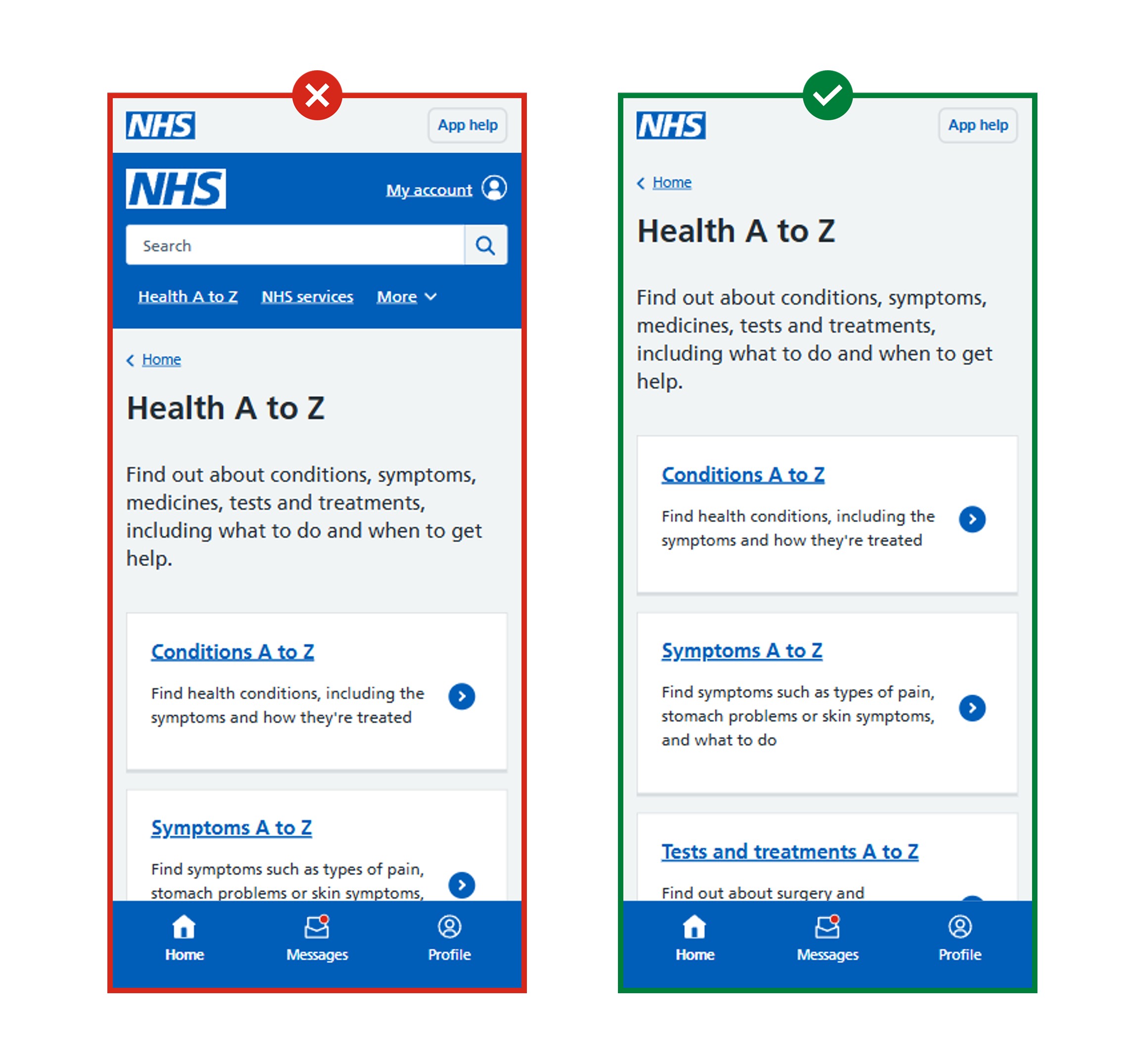
Work with NHS App Interaction Designers to identify other elements that should be removed. For example, contextual navigation links that could lead users deeper into your service without a clear way back.
You can do this by attending the weekly NHS App Interaction Design Huddles, or by using the NHS App Interaction Design slack channel to ask for support.
2. Manage back navigation
Users need a clear and reliable way to go back one step. This custom web integration ensures that users feel like they are still within the NHS App so it's important that we do not confuse them by providing "Back" actions that take them to places they don't expect.
If you need to to allow users to move around in your service, it may be more appropriate to use a Default Web Broswer integration where it is more clear to users that they are not within the NHS App.
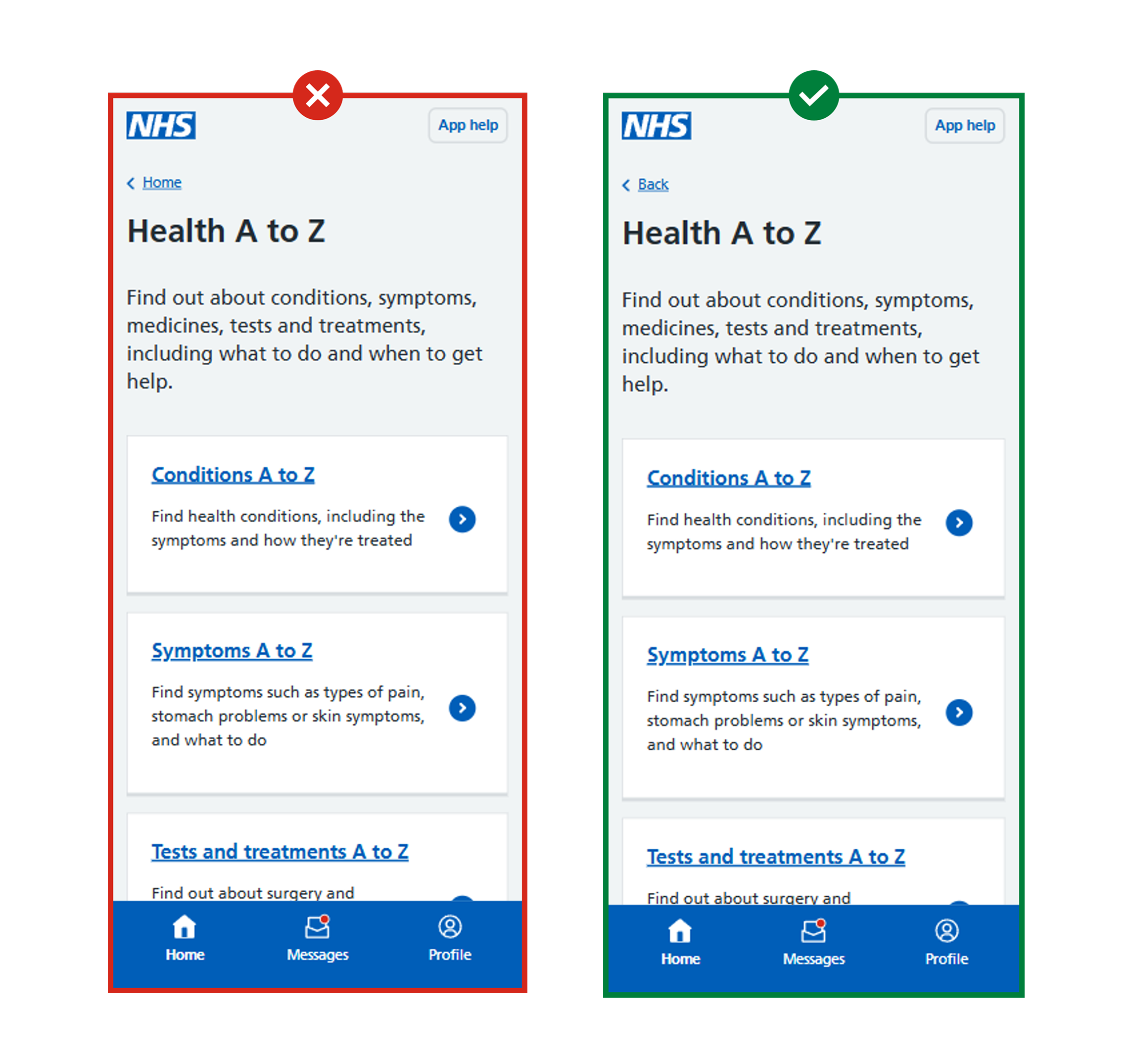
Do not use breadcrumb navigation on any pages viewed within the NHS App. Breadcrumbs reflect your own site's information architecture, which is not meaningful to users arriving from the NHS App.
In the current web-based NHS App: Replace your site's breadcrumb navigation with a single back link. The back link should take users back one step in their browser history. It must be keyboard accessible and placed consistently at the top of the page, before the main content.
In the future native custom web view: Hide the back button on the first page of the journey. Include the back button on every other page. This helps users understand they are at the start of a new journey, while still giving them a way to navigate back once they have moved forward.
Do not use breadcrumb navigation on any pages viewed within the NHS App. Breadcrumbs reflect your own site's information architecture, which is not meaningful to users arriving from the NHS App.
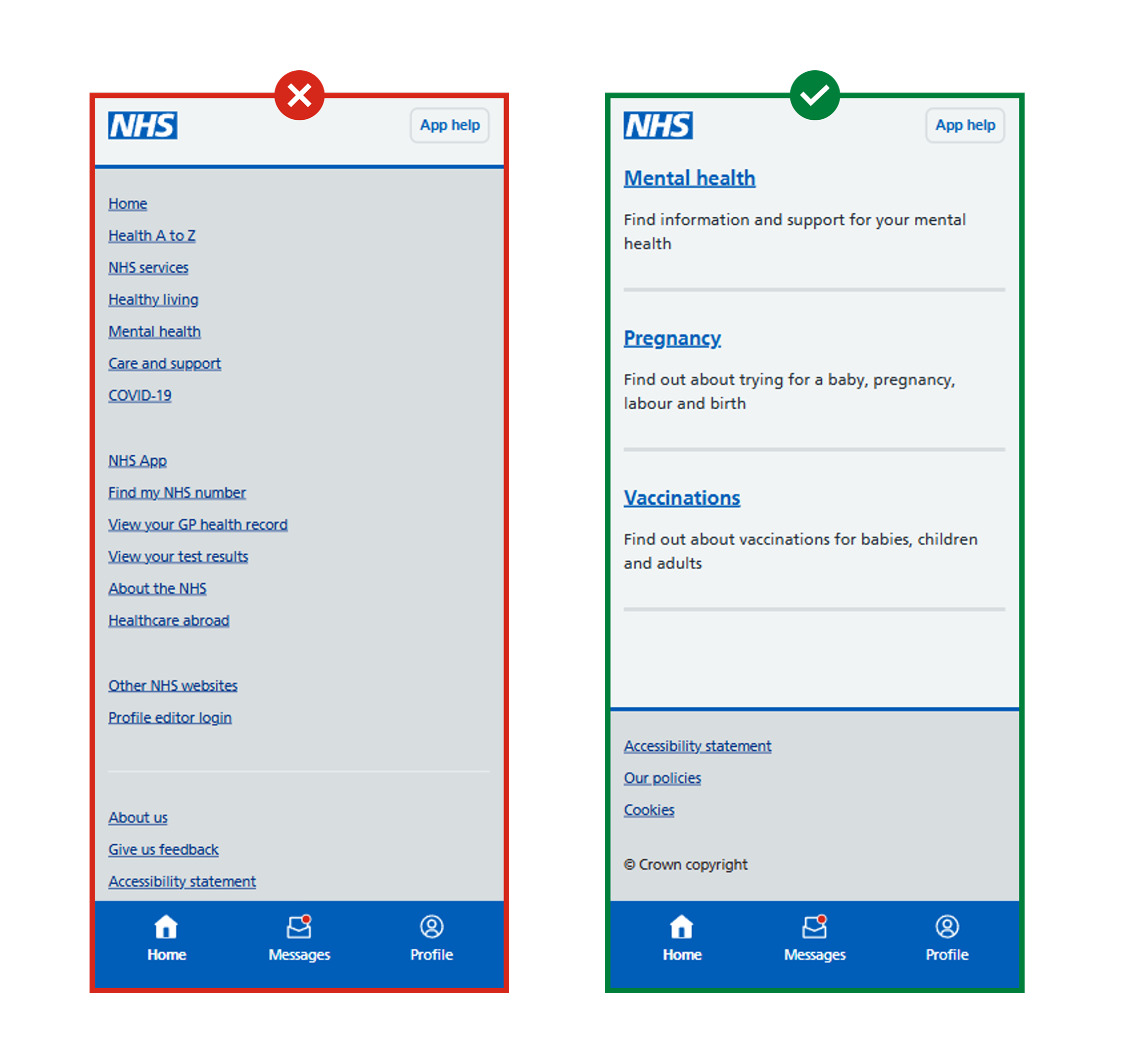
3. Simplify the site footer (current web-based NHS App only)
Reduce the number of links in the footer to only those that are essential:
- terms and conditions
- cookies policy
- accessibility statement
The footer should follow standard NHS design patterns in its visual appearance. Do not include promotional links, section navigation, or other links that could take users out of their current journey.
4. Add a title to the toolbar (in the future-state NHS App native custom browser only)
Give the web view a title matching the name of the service. This will usually match the card link that led the user into the service — for example, "Request a repeat prescription". Check with a content designer before finalising the title.
5. Help users exit the overlay (in the future-state NHS App native custom browser only)
Include an X button in the toolbar on every page so users can exit at any point. On the final screen of transactional journeys, replace the X button with a Done button instead.
If a user selects X after they may have started entering data or making choices, show an alert to confirm they want to close the overlay.
Do not show the alert:
- on journeys with no data input
- on the first page of a journey, before the user has entered any information
6. Open in-journey links in a sheet (in the future-state NHS App native custom browser only)
While users are in a full-screen overlay, links to other content should open in a sheet — a partial overlay that slides up over the main journey, keeping it visible underneath. This shows users they have taken a temporary step that they can dismiss to return to their main task.
- Links to NHS website pages should open as a custom web view sheet
- Links to third-party websites should open as a web browser overlay sheet (Safari View or Chrome Custom Tabs)
Exception: The "Give feedback" journey uses a full-screen custom web view rather than a web browser overlay, so that NHS website links within it open as controlled custom web view sheets.
7. Include an app help button (in the future-state NHS App native custom browser only)
For website-based app journeys such as repeat prescriptions or GP appointment booking, display a persistent app help button at the bottom of the custom web view throughout the journey. This ensures users can always access support without leaving the journey.
For guidance on routing the button, see giving users access to help while they use the NHS App.
How not to use custom web view integration
Integrated pages should not:
- include site header elements such as a service logo, search bar, or account navigation. These cause circular journeys and confuse users about where they are
- use language or links that assume the user is on a website. For example, links labelled "NHS App" that lead to content about the app rather than back into it
- rely on a site search bar to help users find content because it searches your website, not the NHS App, which returns irrelevant results in an app context
- include breadcrumb navigation because breadcrumbs reflect a site's own hierarchy and are not meaningful to users who arrived from the NHS App
Do not assume that hiding navigation elements once is sufficient. Changes to your service may reintroduce them over time. Build checks into your release process to catch these regressions before they reach users.